“How to become a ‘clean thinker’ and get rid of middle-aged brain fog.” As always, a healthy diet and exercise.
Kind: Articles
Updated: Import Chrome passwords into Firefox

Some time back, I wrote a post listing the steps required to migrate passwords stored in Chrome to Firefox.
That post was a bit convoluted, so this post is hopefully an improvement! My intention is to make this process as simple, and reliable, as possible. To succeed, you will need:
- 10 minutes
- Mozilla Firefox, with the Password Exporter add-on installed
- Google Chrome (version 53+)
- LibreOffice
There are five main steps. Let’s get started!
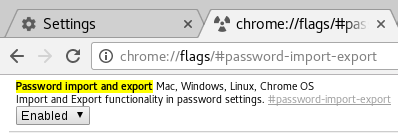
- In Chrome’s address bar, paste:
chrome://flags/#password-import-export…then hit enter.

The option in Chrome should appear like this. Enable it! In the option that is highlighted, Select Enabled and then Relaunch.
- Now, in Chrome, navigate to chrome://settings-frame/passwords, scroll down and click Export. Save the file with a .csv extension.
- Locate the CSV file and right click > Open With > LibreOffice Calc (Alternatively, start LibreOffice Calc and open the CSV file).
- Using LibreOffice Calc, you will need to modify the CSV file to import it into Firefox. Do the following:
- Right-click on row 1 and select ‘Insert Rows Above’. This should insert a single row at the top of the sheet.
- Copy the following and paste into cell A1, using Shift-Ctrl-V (to ensure you paste as plain text):
# Generated by Password Exporter; Export format 1.0.4; Encrypted: false
- You need to move one column, B, to where column D is – but we don’t want to overwrite your data!
- At the top of column B, right-click and select Cut.
- Then right-click again and select Delete Columns – this should remove the now-empty column, and shift-left columns C and D, to positions B and C.
- Now, on column D, select Paste. Your url data should now live in column D.
- Paste the following into cell A2, using Shift-Ctrl-V:
hostname username password formSubmitURL httpRealm usernameField passwordFieldWhen pasting, you may be prompted to select the data format. Select “Unformatted Text” in the list and click OK. We are ok with overwriting other cell contents, so “OK” that. Note, you may need to separate out the headings into columns, left to right.
- Finally, we’re ready to export this data! Go to the File menu, select Save As…In the Save As requester that appears, at the bottom check ‘Edit Filter’ and select ‘Text CSV (.csv)’ in the format drop-down:

Select these options to correctly export your data! - Before we get too excited, there’s just one more step to perform – some textual clean-up!Open up the exported CSV file in your favourite plain-text editor. In the first row, you may see this:
"# Generated by Password Exporter; Export format 1.0.4; Encrypted: false",,,,,,
Delete the leading ” and trailing “,,,,,, from that line.
Secondly, do a Find/Replace on double-commas (,,) making them ,””, (with two quotes inserted) instead. You may need to perform this Find/Replace twice. Now save the file again.
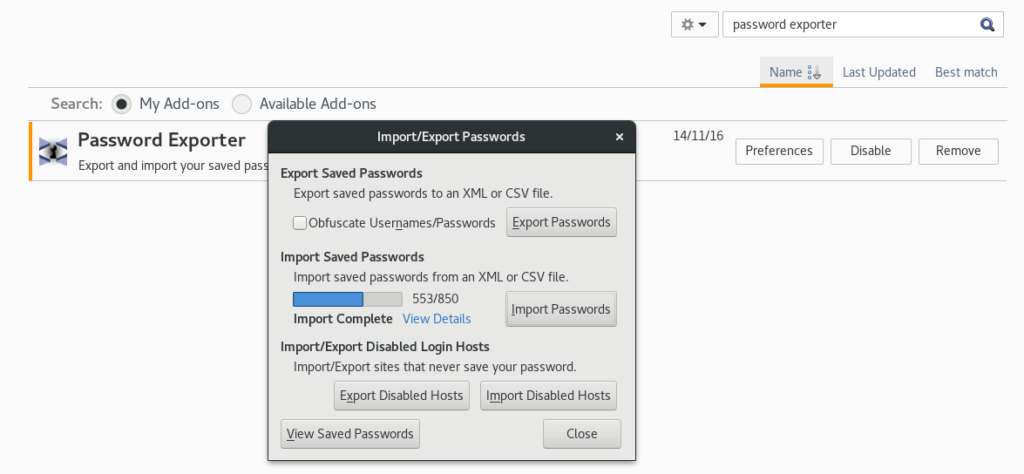
- In Firefox, click on the burger menu and select Add-ons (or just go to about:addons). Find Password Exporter and click Preferences. In the Preferences window, click Import Passwords. Now locate your saved CSV file and load it.You should finally see something like this:

Importing saved passwords into Firefox. Not easy, but definitely rewarding!
Living with a Mac

This is a confession of a new Mac user, seeking absolution.
I have a Mac. It’s for work. Unfortunately, I finally came to realise that I cannot reasonably develop web apps to work on iOS and macOS without having access to those platforms for testing. I feel I’ve done exceptionally well to avoid this reality for many years and plough on with the Linux desktop, but building a VM Hackintosh without a proper software license is against my morals and, indeed, the law.
Would I have bought a Mac for personal use? Of course not. There’s no need; I have been a (more-or-less) happy GNU/Linux user for 15+ years. The Linux desktop has provided me with everything I need from a computer, and I’ve enjoyed the reliability of open source software. And I will continue to be a GNU/Linux user.
I <3 Linux
But … one thing about Linux that is, occasionally, frustrating is the complexity of software. I don’t mean that its typical user software is difficult or overwhelming in Linux. Instead, it’s that there is never the ‘best’ way to do things in Linux; there are multiple, ‘reasonable’ ways. It’s this lack of ‘purity’ about the desktop experience which sometimes confounds newbies, and turns some people off.

From my admittedly limited experience, it seems that people prefer to learn one way to do things and to stick to that way. With all the desktop environment options in Linux, there is no ‘one way’. This is why each platform has its advocates and evangelists, whether it’s Windows, macOS or GNU/Linux.
I feel like I have been spoilt with GNU/Linux, and especially with GNOME 3. To me, there is no better desktop environment than GNOME 3, despite having moments of hair-pulling frustration at it, from time to time. But GNOME 3 is a beautiful desktop: it’s clean and minimalist, its default file system application, Nautilus is more functional than the Mac’s Finder, its handling of multiple workspaces (where Linux is constantly superior) and navigation across those workspaces is much more fluid and natural, and so on.
There are political, social and technical issues with GNOME development and the whole GNU/Linux system at large (let’s not mention systemd here), but if you were to ignore those factors and introduce somebody to ‘the Linux desktop’, I would argue that GNOME 3 (and Cinnamon too, for that matter) present a beautiful interface to enjoy and work in. It’s not perfect, and can be problematic too at times, but it’s flexible and open.
The Problems with a Mac
That was a very long-winded introduction, but I felt it necessary to establish my position, before I talk about the Mac.

The problem I have is this: I want to love the Mac, but I don’t. Sometimes, especially in business, you feel you need a commercial product simply because it helps you fit into the world around you. And, when a computer costs you a significant amount of hard-earned cash, it’s got to be something you want. Sadly, I didn’t want this. It was simply a necessity for me to continue doing what I do to earn a living. Therefore, it felt ‘forced’ rather than chosen, or desired.
When you identify with a philosophy, such as I have with the guiding principles of free/libre open source software, you develop a mindset. You become attached to the tools and methodology deriving from that philosophy. It becomes incredibly frustrating when things that were easy on Linux become hard on anything else. You wonder why people put up with all these obstructions to productivity…
Obstructions to productivity
Let’s look at a few of these. As a software developer, sysadmin, business person and general user (who is used to the layout of a standard UK PC keyboard), I ran into several problems switching over to a Mac:

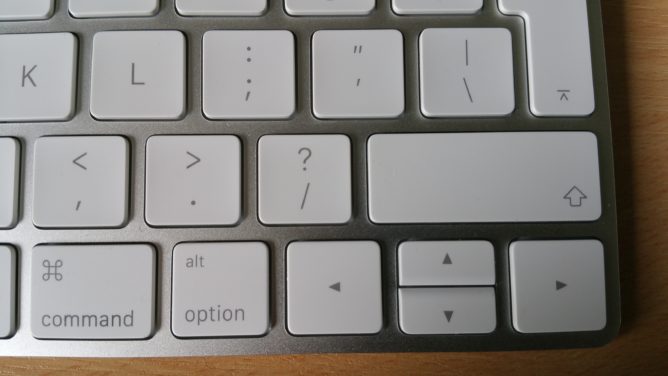
- The hash (pound) key. The hash symbol is used extensively in a UNIX environment to comment out sections of software code for reference purposes. On a UK PC keyboard, this symbol is located on its own key to the right of the keyboard; on a Mac, this is located on the ‘3’ key; you have to use a modified key (the option / alt key) to access it. This is a barrier to productivity, although perhaps due to muscle memory and old habits. The position of the @ symbol (on the ‘2’ key) is also annoying.
- Finder: no SFTP support! As someone who needs to upload files to web servers quite often, it’s stunned me that a well-established UNIX-based OS like macOS doesn’t support this transfer method ‘out of the box’. One has to resort to a third-party program.
- Finder: no Cut?! Apple have a strange approach to doing some things, especially considering their claimed print-based heritage (recall Steve Jobs telling a university that Apple focused so much on typography…?). Take Cut and Paste. Cut (not Copy) and Paste is a relic from the printing press age, where articles in layouts would literally be cut and pasted into position.Unlike all other decent file managers, Cut has no place in Finder on a Mac. Only Copy does. Except… Copy works like Cut when the source and destination locations of a file are on the same filesystem. In this situation, Copy moves the file (Cut-Paste). But, if the source location is on one filesystem, and the destination on another, the file is Copied (Copy-Paste). This is totally inconsistent and confusing, resulting in two copies of the same file – sometimes…
- Finder (again): no option to show hidden files. Yup. As a GNU/Linux user, you take this stuff for granted. This preferences option (or hitting CTRL-H) in GNOME is a lesson to Apple:

How to hide or show hidden (dot-)files, e.g. .config.
- Disk formatting: not enough filesystem support. A typical vendor lock-in situation, where the OS vendor totally fails to provide sufficient flexibility with regard to mounting ‘foreign’ file systems. It’s a complete joke that Tim Cook, CEO of Apple, would refer to Chromebooks as ‘test machines’, when in fact they are more flexible for mounting external devices than a Macbook ‘Pro’.
- Disks – no S.M.A.R.T. support on external USB drives. This is inexcusable. Not being able to see an external drive’s S.M.A.R.T. status, especially when that drive might be used for your time machine backups, is akin to gross incompetence. Other operating systems do this; Apple not doing this is a bad joke.
- Time machine: scheduling not flexible enough. I want daily backups, not hourly. Where’s the option to change this?
- Text editing and stupid modifier key behaviour. On a PC, to select a word at a time you would hold down CTRL+Shift and then arrow left (or right) to select a word. Press the arrow key again to select the second word. Then, to Cut or Copy on the PC, you would keep CTRL held down, release Shift and press X or C, respectively. Not on a Mac. The process of keyboard-based word selection on a Mac is to hold down ‘Option / Alt’+Shift, arrow left or right to select a word at a time, then release all modifier keys, then press and hold Command and then press X or C respectively.
- Workspace / Desktop management is less efficient than GNOME 3. Linux desktops pioneered virtual desktops / workspaces, with Windows and Mac OS (X) following suit. In GNOME 3, workspaces are created and destroyed dynamically, and can be navigated to efficiently using the keyboard (not like on the Mac, where you have to use a three-finger swipe on a trackpad, or the Mission Control key and a mouse). macOS doesn’t destroy unused desktops automatically, leaving visual clutter.

Why not just get rid of that unused desktop/workspace?! Compare GNOME 3, below. https://www.youtube.com/watch?v=bRHAio98n-g
- A pure split-window session is unnecessarily modal. In macOS, you cannot easily create a left-right split of windows that take up all available screen real-estate, without forcing those windows into full-screen modality. Forcing anything is bad, mmm’kay? Again, compare GNOME 3.
Migrating for good?
So, the question remains, is there enough goodness left in macOS to entice me to migrate over for good?
Are you kidding?!
Less productivity, less freedom, some bizarre defaults, some frustrating impediments to productivity and all backed by a ‘can do no wrong’ philosophy mean that Apple’s products will stay strictly off my shopping list commercially and personally for the foreseeable future.
I won’t be selling my ThinkPad T420. No way, José! But at least I can now do iOS and macOS testing for web apps and site layouts. In that vein, Apple makes great test machines!
And I think I have absolved myself 🙂
Facebook app now self-defeating
Since Facebook introduced the data-harvesting ‘Continuously Upload Contacts’ feature in settings, a change has occurred in the background (the Facebook API, for those inclined..) which prevents you downloading your friend list via a trusted 3rd party app.
In addition, the Facebook app itself no longer supports the older style ‘contact sync’ properly (or at all) on both Android and iOS.
In addition (and YMMV), the calendar sync no longer seems to work either. There is a workaround you can follow (link beneath), to create a Google calendar which syncs your Facebook contacts’ birthdays – and this is the primary reason for my post.
I used to rely on the app syncing calendar events to my phone, so that I could see at a glance whose birthday it is and send them my best wishes, but I’ve missed a few recently and now I know why.
I’m starting to wonder what benefit the native Android/iOS app is these days, versus good old mobile website access. I’m going to ditch the FB app on Android and start using ‘Tinfoil for Facebook’ instead, which looks and feels very similar but does away with the bloated spyware that the official app has become.
How to Create a Contact Birthday Calendar:
http://www.stechguide.com/
Tinfoil for Facebook:
https://play.google.com/
iOS users can always ‘Save to Homescreen’ from mobile Safari when visiting facebook.com.
The 10 biggest problems with Debian’s GNOME
This post is not intended to start a flame/holy war or any other kind of religious conflict with regard to Linux desktop environments (DEs). What it is intended to do, is to simply catalogue the multitude of problems I have been encountering while using Debian Jessie and GNOME 3.14. 🙂
I LOVE GNOME (I truly do)
Let’s put this one right out there: The GNOME Shell/GNOME 3 UI is, IMHO, the BEST desktop user experience out there for Linux.
“Wait,” you might say, “doesn’t this conflict with the title of this blog post?”
Well yes, it does. But I want you, my learned reader, to understand that I wish that the GNOME DE was as stable and solid as it should be. As it could be. And hopefully as it will be.
You see, this is what Linux and other Unix-like operating systems have been known and reputed for – their stability. I love what the GNOME devs did when they decided to reimagine the desktop for GNOME 3: they used space sensibly, vertically, which to me feels more natural and intuitive. And I love how it’s meant to stay out of the way – another good design motif.
But in terms of stability, sadly, GNOME has been something of a disappointment to me, and I wish this were not the case. Perhaps this is just a consequence of its ambition, and that will always garner my respect. Or maybe my install went terribly wrong, somewhere. But I don’t reckon. So, without further ado…
DISCLAIMER: WRT the issues with Debian Jessie‘s implementation of GNOME Shell/GNOME 3, I shall simply refer to it as GNOME. I apologise to the purists out there. I am only commenting on my experience in Debian Jessie, not anyone else’s, nor of any other GNU/Linux distribution. Finally, I intentionally do not go into detail here and am not providing numerous distro/upstream links to “validate” my own claims. I don’t need to. If you’re interested, just search anything I have put below. I am pretty confident you will find stuff…
The 10 Problems
Have you had similar experiences to these? Do comment below.
1. Tracker
The problems with GNOME start from the very moment you log in: it’s a disk-thrashing, sluggard of a desktop. And yes, I am using a disk, not a SSD. Why? Because badly written software doesn’t deserve a place in my CPU, let alone being so resource-hogging as to require an SSD.
So yes, Tracker is the first problem with GNOME. From logging in, all the way through your session, to shutting down your machine, it’s there – consuming all available CPU, disk I/O and (perhaps due to a memory leak), system memory. Happily gobbling it all up like a sickly child with no manners. 🙂
Perhaps I am being unfair, inferring that Tracker is “bad software”. It’s not a bad idea and its search seems to work well. But it doesn’t reign itself in. And software that doesn’t adhere to users’ choices through its own preferences panel is software that needs attention.
There are too many people/posts on the web with/of similar experiences. But, why not just disable tracking completely, you ask? Like, through the GUI you mean..? Mmm.

2. Crashes and Freezes
Next up is something akin to heresy: crashing and freezing of the whole desktop UI. Seriously, it’s that bad.
You are in the middle of something, as you might be in a productive desktop environment, and BAM! no window response. That’s it. All gone. This single issue is by far the most perplexing and irritating, totally demolishing my productivity recently.
When you start searching on t’interweb about this, you realise that this has haunted GNOME for years, and in multiple versions. The nearest posts I have found on the web which seem related to the problem I have are here:
- https://bugs.debian.org/cgi-bin/bugreport.cgi?bug=767173
- https://phreaknerd.wordpress.com/2011/09/25/gnome-shell-reload-after-freeze/
3. Crashes and Freezes after Live User Switching

An alternative way to make GNOME hang on you is to use the live user switching. Just set up another user account, then Switch User via this menu. Then, as your new user, switch back to your original account.
Do this a few times for maximum effect, until you get stuck looking at the frozen greeter, just after it’s accepted your password for logging back in.
Enjoy the view.
It’ll last a while.
In fact, no need to take a photo. This’ll last long enough.
Moving on…
4. GNOME Online Accounts
Ahh, GOA. Such a good idea. Implemented in such an average way.
GNOME Online Accounts is meant to centralise internet service (or “cloud”, hwk-ding) accounts through one easy GUI component, and then share the online resources of each account with the appropriate desktop software. Think, Google Calendar being visible in your desktop calendar, which is a separate desktop application than, say, your email reader (where you could read your GMail). But no need to set up each application separately; just set up the GOA and each application gets relevant access. Get the idea?
The account set-up bit of this is, actually, great. I’m all for it too – this whole concept. It just makes so much sense.
One of the problems with it is that things don’t work properly. For example, if you use two-factor authentication in your Google account, and rely on application-specific passwords, then GOA doesn’t like that. You will be constantly prompted for your Google account password, which is never accepted.
To be fair to Jessie, I haven’t seen this happen recently, so it may have finally been plugged. Or I may just be lucky.
5. Evolution’s management of GOA’s SMTP/IMAP accounts
Another problem is SMTP/IMAP accounts. Sure, they integrate nicely with Evolution. Until you edit parts of the account in Evolution, which are more application-specific. Then, you return to your account folders list with your GOA mail account being renamed to “Untitled”. A rummage through, and edit of, the relevant ~/.config files is required to correct this error. Not so slick.
I still have hope though. One day this stuff will work great.
6. Evolution Hangs
Yep, another hangy-crashy thing. Sometimes, for no discernible reason, when you close Evolution is hangs, mid-termination. Forever. You have to send a KILL to it to actually get it to close off completely. Why? Who knows. It appears to be a timeout or spinlock type of problem. Sorry for being vague, but look, just do this Google search and pick a year. It looks like this bug has been around in one incarnation or another for a very long time.
7. Nautilus Hangs
Are you seeing a pattern here? Yep, our faithful friend and file utility, Nautilus, also hangs. Quite often. Why it does this, I have not yet been able to determine. Sigkill to the rescue. (You can do a Google search on this too…)
8. Standby and resume with remote file system mounted

Now, I admit, this is a silly thing to do when you look at it, because you are clearly asking for trouble if you have a remote filesystem mounted into your own filesystem, and then put your machine to sleep for a while.
You can make the problem worse still, if you have laptop with a docking station. Simply put it to sleep, undock, wake the machine, then reconnect using your wireless instead of ethernet. The outcome varies from a locked desktop (where nothing works), to a frozen nautilus.
Again, a silly thing to do, perhaps, but also an innocent mistake at times. Like, when you’re rushing to attend a meeting, for example.
So, why not be offered a notification, when requesting to “sleep” the machine, saying that remote filesystems are mounted? I think even I might be able to knock up some code for that one (but I’d prefer to leave it to the experts, who I respect fully and who would do it far better than I).
9. Audio Output Switching

As you may have gathered from previous comments, when it comes to GNOME I am primarily a business user. My business runs and relies on GNU software & Linux. For the experience and knowledge I have gained – not to mention being able to sustain an income and lifestyle I’m happy with, I am indebted to many people for their determined efforts in the free software community.
Unfortunately, little bugs creep in here and there – that’s the rule of life. One minor annoyance with Jessie, that wasn’t present in its predecessor Wheezy, is automatic audio output switching. In Wheezy, after a small tweak to the kernel module loading (via /etc/modprobe.d), the audio output would be directed to my docking station’s analogue jack when the laptop was docked, and then automatically switch to the laptop’s speakers when undocked.
Unfortunately, in Jessie, when my laptop is docked I have to hit the Super (Windows) key and get to the Sound preferences, then switch the output device. After undocking, the same story. This is, apparently, fixed upstream, but regressive and annoying nonetheless.

10. The long pauses and (what seems like) catastrophic resource “sharing”
This is so subjective an issue that I thought it barely worth mentioning, but an issue it is nonetheless. And one that I actually feel is perhaps the worst of all.
When key processes are busy in the GNOME Desktop Environment – say Tracker for sake of argument, the “hit” on the rest of the system is shocking. Right now, as I type this blog entry, any mouse-based GUI interactions are extremely sluggish. This could be the reason why:
top - 16:34:34 up 2:00, 2 users, load average: 16.31, 15.97, 13.93
So what is causing such a load on my machine? It doesn’t take long to figure it out, in top:
PID USER PR NI VIRT RES SHR S %CPU %MEM TIME+ COMMAND 9187 smd 39 19 2239548 210440 34852 R 83.7 1.3 3:50.74 tracker-extract 9148 smd 20 0 693940 59696 8652 S 7.6 0.4 4:33.53 tracker-store
For reference, my trusty ThinkPad T420 uses a 2nd gen Core i7 processor (dual core w/hyperthreading), 16GB DDR3 memory (dual channel), a 64GB mSATA SSD system drive and 500GB Seagate Momentus 7200.4 drive for my /home. It’s a set-up that’s still powerful enough for getting things done, and I’ve grown quite fond of this chunky, heavy laptop (by 2016 standards). Yes, it’s a bit clunky now, but it’s still got it where it counts, and has only required minimal servicing over the years (since 2011).
Back to the main issue, though. You see, I grew up on Amigas. Fully pre-emptive multitasking spoilt me, and I’ve never looked back, or sideways, since. These days, all modern operating systems provide significantly more advanced multitasking and far, far more powerful hardware, but the user’s needs should always come first in a desktop environment. So, having an unresponsive desktop for hours, because a non-GUI process is taking too much CPU and I/O, is not a productivity boon, to say the least.
And just when you thought my tirade was complete, for a special BONUS…
11. Dejadup/duplicity and the inability to restore a backup!!
I love how well integrated Dejadup is into Nautilus. It’s a neat idea, to be able to just navigate to anywhere on your file-system and then say “hey, you know what? I wonder if that file I was looking for used to live here?“, or “I really must restore the earlier version of this file, or that file…”.. And so on. It even states on its website, that it “hides the complexity of doing backups the Right Way (encrypted, off-site, and regular) and uses duplicity as the backend” [my link].
‘GNOME Backups’ was designed to facilitate exactly this, using the Dejadup/duplicity combo, with two main Nautilus integration actions. Firstly, you can right-click in a folder (on blank space) and select “Restore missing files”. Or, you can right-click on a specific file and select “Revert to previous version”. In either case, a dialog will appear prompting you to select a date, from a range of dates when backups occurred. Great, huh?
Except a backup is only good when you’re able to restore it. I was not able to restore mine. The “Revert” functionality simply failed, every time I tried, with a “File not found in archive”-style error message each time. I also tried restoring the entire backup, which also failed. This issue pretty much covers it.
So, perhaps using duplicity (and not Duplicity) as the backend is exactly what it does. I don’t trust it with my back-ups. For that job, I use BackInTime.
Conclusion: I STILL LOVE GNOME
I was originally going to entitle this blog post, Debian’s GNOME is a broken user experience, but shied away from making such a bold, and somewhat unfair, claim. However, it’s hard not to conclude that this might actually be the case.
GNOME 2 used to be amazingly solid. In fact, in my younger years I didn’t use it because I perceived it as being a little boring, instead opting for KDE (v2, then v3) as my go-to desktop for quite a while. I would love to have the stability of GNOME 2 – at least as I experienced it – just in GNOME 3 form.
The biggest problem about GNOME 3 / Gnome Shell, is that I like it so damn much. For me, despite all the wrinkles and annoyances, the occasional memory leaks of “background” indexing processes, the frequent hanging of various applications and the seemingly (at times) untested nature of the software, it’s actually brilliant. It’s fast, feature-full, yet fluid. That’s a rare combination in software.
For me, it’s faster to work in than any other DE, because it combines enough functionality with equally enough transparency. For instance, when I am editing a client’s website files and want to upload them, Nautilus is the hero – allowing me to quickly mount the remote filesystem, upload my files, and then disconnect. No need to launch additional software for that task. We’re just moving data from one filesystem to another, right? That’s what a file manager does and, in the main, Nautilus is exceptional at it.
As an Emacs user, I know I could do a similar thing using Tramp and Dired mode. And I’ll keep that as an option to probably explore someday soon.
I’ve been using Debian for some time now, migrating away from Fedora on my netbook to start with, and then later on my main work laptop. In general it’s an operating system that does so much right, it’s hard when things occasionally don’t work as expected.
I won’t say that Jessie’s innings with GNOME have been the best; fair from it. But hopefully we can look forward to a smoother experience as time goes on.
How To: Fix USB Keyboards Missing the First Keypress in Linux
I use my laptop as a desktop with an external monitor, mouse & keyboard, and found that recently the keyboard would keep missing the first character of input – and it was driving me nuts.…
Source: How To: Fix USB Keyboards Missing the First Keypress in Linux
Low oil prices may be living on borrowed time http://flip.it/BgaHz
Low oil prices may be living on borrowed time flip.it/BgaHz
Rebooting into a New Year

I used to typically find New Year celebrations a mixed blessing.
Sometimes they can remind you of all the good, great, sad and bad events of the concluding year, in a way that makes you grateful to be alive and with loved ones. Other times, the gratitude can give way to pensiveness, reflection and perhaps also regret.
Having One’s Cake
This new year (2015 into ’16) was a little different, though. Following a very busy but also very rewarding year, the period over Christmas gave me opportunity for reflection and redirection.
2015 was a “solid” year. And by that, I basically mean unrelenting. It was a year without a single week off for annual leave, which proved extremely tiring as the autumn months came around. At the same time, after a gruelling late summer with web projects “galore”, things started a gentle easing towards the end of the year.
It wasn’t to last, but amidst the business of work projects was also a number of social engagements which provided plenty of entertainment and some light relief! All of which was enjoyed on social media, of course (want to connect? Find me on whatever you use).

Three Directions
Naturally, life eventually returns to matters of work, which I love. This year, my focus is on quality and quantity. Well, if you can have both, why not!
Quality First
My belief is always that there is no substitute for quality [1]. I apply this principle to all the work my company, Warp Universal, is commissioned for by clients, and to all hosting services too. I’m currently working on some ideas to further guarantee the highest quality project management and delivery to clients, whatever the challenges!
Support Always
Providing quality support is paramount in my eyes. I have always been proud to offer good support to our customers, but this hasn’t been without its challenges (being forced to quickly reconsider data storage, in the wake of Schrems vs Facebook, being the most recent).
Building Up Organically
Managing a micro business is no mean feat, as anyone who has done so will testify. At one time, I considered growth to be the largest (and perhaps only) signifier of a successful business. But this is false, and I’m glad I realise that now. Many struggling businesses are those that have grown too quickly, without enough consideration, or without the ability to back-off sales satisfactorily. It’s my intention to grow the business, organically, sustainably and vertically.
2016 is looking to be a very promising year for Warp Universal 🙂
Pushing Forward
Alongside work, 2016 is looking to be a great year for my surfing. Not because the weather patterns look particularly convivial to it, nor that my free time is that much greater than it was before. It’s simply that I want to surf more in 2016, and I’m in a position to make it happen.
Along with that, it’s definitely a year to align my media production with media consumption. A great love of mine is music, and work commitments have often meant I’ve lost touch with newer acts on the scene. I look forward to reconnecting via a music subscription service.
Take Off!
The year ahead is an interesting prospect. 365 days remaining from today (leap year, remember!) to achieve so many goals. And not forget that life is short, so a little fun should be had also.
[1] A phrase once used by my Grandmother.
Sad news: Ian Murdock has passed away http://blog.docker.com/2015/12/ian-murdock/
Ian Murdock, founder of the Debian project, has passed away aged 42. blog.docker.com/2015/12/ian-murdock/
Pretty sure, if Trump got elected, the last thing Americans need worry about is Muslims.
If Trump got elected, the last thing Americans need worry about is Muslims.