Wife: “Alexa, can you substitute baking soda for baking powder?”
Alexa: “Hmm, I’m not sure what you meant by that question.”
Wife: “Alexa, can you substitute baking soda for baking powder?”
Alexa: “I’ve added baking powder to your shopping list.”
Wife: “Wtf… Hey Google, can you substitute baking soda for baking powder?”
Google Home: “According to SimplyRecipes, you can substitute baking soda for baking powder, if you increase the amount of acidic ingredients in the recipe to offset the baking soda. You’ll also need much less baking soda as it is 3 times as powerful as baking powder. You’ll need about a teaspoon of vinegar or lemon juice for every 1/2 teaspoon of baking soda.”
Turn Your MacBook Pro Into Kitt From Knight Rider, Compute Like David Hasselhoff. I finally see the point. <a href="http://gizmodo.com/turn-your-macbook-pro-into-kitt-from-knight-rider-comp-1789382596">http://gizmodo.com/turn-your-macbook-pro-into-kitt-from-knight-rider-comp-1789382596</a>
Despite previousposts advocating the indieweb, sadly I need to trim down my WordPress plugin experience. This is mainly to seeing a lot more traffic on my site recently, and not having the time or resources to optimise the plugin code running on my virtual server. I found that the number of plugins in my site (around 48) was really starting to hamper performance.
So it’s with regret that I step out of the indieweb sharing platform, by removing all associated plugins from my WordPress. Despite being in full agreement with the indieweb mantra, of owning one’s own data, I do find some satisfaction and convenience of using WordPress.com‘s own tools to do the same job now. To some extent, they have embraced providing a richer, more social experience through WordPress sites – whether hosted by them, or by “us”.
My only regret is that I couldn’t contribute to the project, the principles of which I wholly believe in and support – if only on an intellectual level.
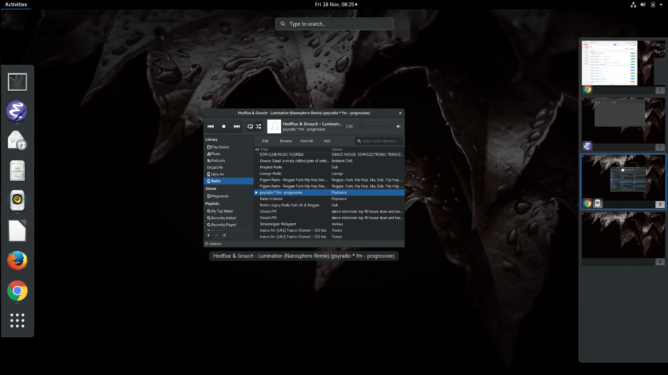
After all these years, I can still find no better development environment than GNOME 3, Emacs and Rhythmbox.
A 100% functional desktop environment, that’s way more flexible than macOS or Windows, more secure, more resource-efficient, faster, cleaner, less obtrusive, quicker to navigate, more economic keyboard shortcuts to navigate, and (IMHO) better on the eye too.
Which all matters when you spend whole days looking at code.
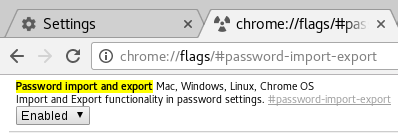
That post was a bit convoluted, so this post is hopefully an improvement! My intention is to make this process as simple, and reliable, as possible. To succeed, you will need:
Locate the CSV file and right click > Open With > LibreOffice Calc (Alternatively, start LibreOffice Calc and open the CSV file).
Using LibreOffice Calc, you will need to modify the CSV file to import it into Firefox. Do the following:
Right-click on row 1 and select ‘Insert Rows Above’. This should insert a single row at the top of the sheet.
Copy the following and paste into cell A1, using Shift-Ctrl-V (to ensure you paste as plain text):
# Generated by Password Exporter; Export format 1.0.4; Encrypted: false
You need to move one column, B, to where column D is – but we don’t want to overwrite your data!
At the top of column B, right-click and select Cut.
Then right-click again and select Delete Columns – this should remove the now-empty column, and shift-left columns C and D, to positions B and C.
Now, on column D, select Paste. Your url data should now live in column D.
Paste the following into cell A2, using Shift-Ctrl-V:
hostname username password formSubmitURL httpRealm usernameField passwordField
When pasting, you may be prompted to select the data format. Select “Unformatted Text” in the list and click OK. We are ok with overwriting other cell contents, so “OK” that. Note, you may need to separate out the headings into columns, left to right.
Finally, we’re ready to export this data! Go to the File menu, select Save As…In the Save As requester that appears, at the bottom check ‘Edit Filter’ and select ‘Text CSV (.csv)’ in the format drop-down:
Select these options to correctly export your data!
Before we get too excited, there’s just one more step to perform – some textual clean-up!Open up the exported CSV file in your favourite plain-text editor. In the first row, you may see this:
"# Generated by Password Exporter; Export format 1.0.4; Encrypted: false",,,,,,
Delete the leading ” and trailing “,,,,,, from that line.
Secondly, do a Find/Replace on double-commas (,,) making them ,””, (with two quotes inserted) instead. You may need to perform this Find/Replace twice. Now save the file again.
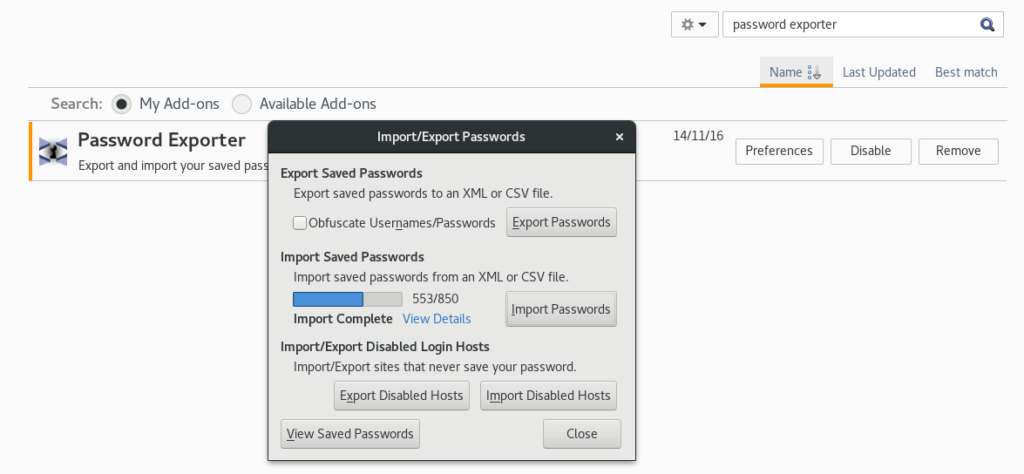
In Firefox, click on the burger menu and select Add-ons (or just go to about:addons). Find Password Exporter and click Preferences. In the Preferences window, click Import Passwords. Now locate your saved CSV file and load it.You should finally see something like this:
Importing saved passwords into Firefox. Not easy, but definitely rewarding!